Tuesday, 18 December 2018

How to Get Photos off iCloud


Make Copies of Your iCloud Photos

If you have enabled iCloud Photos, all the photos and videos on your device will be uploaded to iCloud automatically at full resolution. It is possible to make copies of these photos and videos if you follow these simple steps:

On Your iPhone/iPad

Step 1: Tap on Settings > {Your Name} > iCloud > Photo.

Step 2: Turn on “iCloud Photo Library” and then select “Download and Keep Originals”.

You can then import the downloaded photos to your computer.


On Your Mac

Step 1: On your Mac, open the Photos app.

Step 2: Choose Photos > File > Export.


On Your PC

On your PC, simply set up iCloud for Windows and then turn on iCloud Photos.


Copy Photos from Shared Albums

You can also copy photos from your shared albums across all devices. To do that, follow these simple steps:

On Your iPhone/iPad

Step 1: Open Photos and then tap on Albums.

Step 2: Find the “Shared Albums” and then tap on the name of the shared album you want to copy photos from. You may need to swipe left to locate the shared album.

Step 3: You can then tap an image to open it and then tap the download icon to make a copy of it. Or, you can tap “Select” and tap on the images you want to save before tapping on the download icon to save them.Sponsor ads:

Gihosoft Free iPhone Data Recovery:https://www.gihosoft.com/iphone-data-recovery-free.html

Gihosoft iPhone Data Recovery Free

Free iPhone Data Recovery Software for Windows/Mac

Recover up to 12+ types of files, including contacts, SMS, photos, WhatsApp, Viber, notes, etc.

Restore lost data from iOS devices directly or from iTunes and iCloud backup

Recover iPhone data lost due to iOS upgrade/jailbreak, accidental deletion, device lost or broken

Support all the latest iPhone, iPad and iPod Touch

Both Free and Pro version.

If you lost data after you updated to a new iPhone, you can always use Gihosoft iPhone Data Recovery to get the data back from the old iPhone or backup.You may also like: iphonerecovery.com

If you use android phones, please choose Gihosoft Android Data Recovery.

With Gihosoft Android Data Recovery, no longer afraid of data loss!

Gihosoft RePicvid Free Photo Recovery Software provides a free photo recovery software for windows to help users recover the deleted or lost photo for free.

Jihosoft Android Data Recovery: the best Android Data Recovery software for Windows and Mac to recover deleted contacts, messages, photos, videos, WhatsApp and etc from Android devices.

jihosoft Free iPhone Data Recovery


Worth reading:Best youtube downloader online download youtube 1080p


On Your Mac

These simple steps will help you manually import photos and videos in shared albums to your Photos library:

Step 1: Open Photos and then select “Shared Albums”.

Step 2: Double-click on one of the shared albums you want to copy images from.

Step 3: Right-click on a photo and choose to import.


You may want to back up your library once the photos have all been imported. You can store the imported photos in a separate library on your computer or even on a different drive.

On Your PC

Saved photos on your PC are available even if you have turned off Photos in iCloud for Windows. But to save photos and videos from a shared folder, you must save them to another folder on your hard drive. To do that, follow these simple steps:

Step 1: Open iCloud for Windows.

Step 2: Click on the “Options” tab next to Photos and take note of the path that is listed under iCloud Photos Location.

Step 3: Now open a File Explorer window (Windows 8/10) or a Windows Explorer window (Windows 7 or earlier).

Step 4: Go to the iCloud Photo folder using the file path noted in step 2 above and open the Shared folder.

Step 5: Now, simply select the photos you want to save and copy them to a new folder or location on your computer.


Sunday, 12 August 2018

How to Manually Uninstall Bonjour iTunes 2019

How to Manually Uninstall Bonjour iTunes 2019

Manually Uninstall Bonjour iTunes

If you have any Apple software on your device, there’s a high probability that you have a Bonjour folder in your program files. It starts up automatically and runs a process named mDNSResponder.exe. This process cannot be stopped by Windows’ task manager. So if you want to get rid of it, you have to remove Bonjour.
Way 1: Uninstall Bonjour from Control Panel

Generally, you can remove Bonjour from your Control Panel. You can ordinarily do this by going to Control Panel and clicking “Programs and Features”. Find the program called “Bonjour” and right click on it to choose “Uninstall”. However, this process may fail to completely remove Bonjour from your device and it may cause operating problems for your iTunes.save twitter videos


Way 2: Remove Bonjour Service and Files You may also like:
Jihosoft iPhone Backup Extractor Extract and recover all types of data from iPhone backup files, such as camera roll photos, videos, SMS, contacts, reminders, WhatsApp, and etc.

Another method you can use to remove Bonjour from your device as well as its files – mDNSResponder.exe and mdnsNSP.dll – is as follows.

Step 1: On your PC, go to C:\Program Files\Bonjour.

Step 2: Find the "mDNSResponder.exe" file. Right-click on it and choose "Delete".

Step 3: Find the "mdnsNSP.dll" file. Right click on it and choose "Delete".

Note: If you receive a notification "This action can't be completed because the file is open in Bonjour service", restart your computer and try to delete them again.


Step 4: Once done, restart your computer, go to “C:\Program Files\” and delete the Bonjour folder.

This process allows you to fully remove Bonjour from your device. However, it obviously takes time and more than a little bit of knowhow. There’s a better and safer way to remove Bonjour from your device in an even safer, quicker manner.

You may also like:
If you ever lost or accidentally deleted data from your iOS device, you can use the professional Gihosoft iPhone Data Recovery software to retrieve important data from iPhone, iPad or iPod Touch even without backup.
Jihosoft iPhone Backup Extractor Extract and recover all types of data from iPhone backup files, such as camera roll photos, videos, SMS, contacts, reminders, WhatsApp, and etc.

Thursday, 26 July 2018

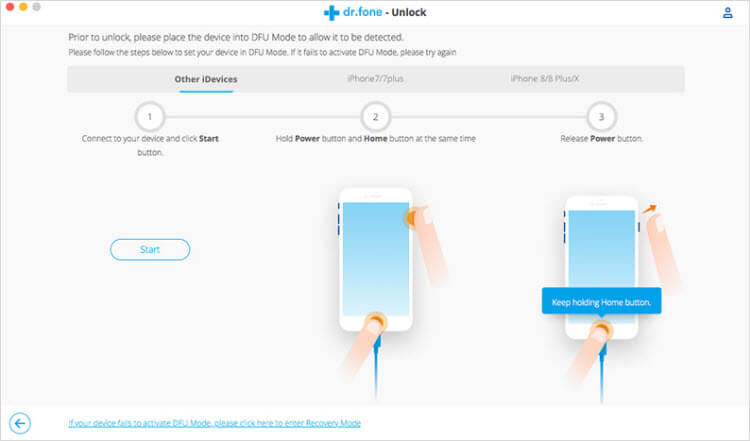
Dr.Fone Unlock: Fix "iPad is Disabled"


Dr.Fone Unlock: Fix "iPad is Disabled"

Dr.Fone - Unlock for iPhone and iPad is a great tool to unlock your disabled iPad, it allows you to easily remove passcodes when you forget the passcode on your iPad or you just don't know the passcode on an iPad you were given. You can use this iPad unlocker to get rid of the lost or forgotten passcode in 5 minutes.
Dr.Fone’s Key Features:


It is easy to use and requires little or no technical knowledge at all.


It is 100% secure. Only you possess access to your account and by extension, your data.


The presence of Safe Removal means you can clear your iPad and not worry about someone else stumbling upon it.


Before unlocking on Dr.Fone, you need to know this: the Find My iPad option should be disabled. Then you can successfully unlock your iPad.

The loss of your passcode is not the end for your iPad, there are ways to re-access your iPad and be back among the good times. You have options that will ensure your device is back running in no time.If you lost videos from iOS Camerall Roll which are nowhere to download again, you can use Gihosoft iPhone Data Recovery to get back deleted videos from iOS device including iPhone, iPad and iPod Touch.

Jihosoft iPhone Backup Extractor Extract and recover all types of data from iPhone backup files, such as camera roll photos, videos, SMS, contacts, reminders, WhatsApp, and etc.

Gihosoft Android data recovery Free is a super awesome software specialized in Android file recovery. With this program, you are able to recover deleted photos, music, videos, messages, contacts, call logs, WhatsApp messages, Viber chat history and more from Samsung, Huawei, LG, HTC, Motorola, Google, Oneplus, Sony, Lenovo, ZTE and other Android devices directly. Meanwhile, this Android data recovery software is available for both Windows and Mac platforms.


How to Download All Photos from iCloud

Download All Photos from iCloud

How to Download All Photos from iCloud

Download Photos from iCloud to PC

You can download multiple photos from iCloud using this iCloud app on your computer. To begin the process, you will have to download the iCloud application for Windows and install the same. After that, proceed with the following steps as stated below:


Step 1: Launch the program, and from the control panel, sign in with your Apple ID.


Step 2: From the right side of the program, you will view the services offered. You can click the Photos service and press the "Apply" button.


Step 3: Press the Options button after setting the iCloud Photo Library.


Step 4: You can now browse the pictures available in the account. Select desired images or all, and download all your iCloud photos to computer.


Download Photos from iCloud to Mac

Downloading photos to Mac from iCloud can also be completed with similar steps and you can follow them:


Step 1: You have to check whether you are running the latest version of Mac. For this, navigate to the Apple menu and choose "About this Mac" and click "Software Update."


Step 2: Head to the system preferences from the Apple menu after updating the software. Choose iCloud and log in by entering your Apple ID and password.


Step 3: After completing the signing in process, select the Photos service from the left pane.


Step 4: Now, click on the "Options" buttons provided next to the Photos feature to activate the iCloud Photo Library.


Step 5: With the action, you are allowing iCloud to synchronize all the photos on the photos library with Mac. You can now check all the pictures directly.


If you lost videos from iOS Camerall Roll which are nowhere to download again, you can use Gihosoft iPhone Data Recovery to get back deleted videos from iOS device including iPhone, iPad and iPod Touch.

Jihosoft iPhone Backup Extractor Extract and recover all types of data from iPhone backup files, such as camera roll photos, videos, SMS, contacts, reminders, WhatsApp, and etc.

Gihosoft Android data recovery Free is a super awesome software specialized in Android file recovery. With this program, you are able to recover deleted photos, music, videos, messages, contacts, call logs, WhatsApp messages, Viber chat history and more from Samsung, Huawei, LG, HTC, Motorola, Google, Oneplus, Sony, Lenovo, ZTE and other Android devices directly. Meanwhile, this Android data recovery software is available for both Windows and Mac platforms.

Thursday, 19 July 2018

How to fix Fix all Pokémon Go Error on GPS, Server, Crashing app: Other Problems


How to fix Fix all Pokémon Go Error on GPS, Server, Crashing app: Other Problems

Can’t connect to the Pokémon Go server from iPhone

Find Pokémon and Catch is most important and tucker physical activity in whole Pokémon Go, So Use other apps that decrease some burden to you and server as well.
Also, check server status for your regions at other sources (Online website). This page gives the option to report your problem related to server connectivity (Fully Down for all, unstable or Down for you only).

GPS signal not found: Start Pokémon Go game on iPhone

Location base game, First need your GPS location. Make sure and check your Pokémon Go running on iPhone/ iPad after enabled location service. If not then turn on Location service for an app installed on a device or for Pokémon go only.
Go to the Settings > Privacy > Location Services > Enable
Enable location service for Pokemon go

Pokémon Go does not open after install

Beware from the False and mismatched name: Pokémon Go in App store. Identify, the real Pokémon Go developed by Niantic, Inc.
Verify Pokemon Go in app store
Restart (Press Sleep/ Wake and Hold) your iPhone/ iPad or Force Restart (Press Sleep/ Wake and Home button until you see the apple logo on screen).
Update your Device with the latest version of iOS (Go to the Settings > General > Software Update) or App in the app store (App store > Updates) as well. Recently Apple gives an update to all iOS Public Beta 1 users in Beta 2.
Uninstall App and Reinstalled app that will remove Saved settings and Data.

Pokémon Go app Freeze

For all time or particular action (Catch a Pokémon) in play Pokémon app, are you facing freeze app issue? Recover it by restart device once or close all app running with it or opened in the background (Mail app, Social App, Feed app or Map).

Pokémon Go not running on iPhone

To play Pokémon go on iPhone, you must require iPhone 5 or later new models running on iOS 8 or later version.
Jihosoft iPhone Backup Extractor Extract and recover all types of data from iPhone backup files, such as camera roll photos, videos, SMS, contacts, reminders, WhatsApp, and etc.
Gihosoft Free iPhone Data Recovery is a professional iPhone Data Recovery software to get back all your lost text message, photo, video, call history, note, contact and more from iPhone/iPad/iPod Touch.


Wednesday, 18 July 2018

Download iOS 12 Beta 4 without developer account

Download iOS 12 Beta 4 without developer account

WHAT’S NEW IN IOS 12 BETA 4?

The Beta 4 update of iOS 12 doesn’t bring any new features, rather it fixes bugs and glitches present in the previous builds. Its build number is 16A5327f and weighs about 500MB.
According to its release notes, iOS 12 beta 4 resolves the following bugs and issues –
  • Fortnite crashing unexpectedly.
  • Netflix quitting while downloading a video.
  • Route map for a workout might be unavailable.
  • “No SIM” notification displayed in iPad when an Apple SIM is inserted without an active plan.
  • Screen data time may not sync properly across other devices.
  • Voice memos not syncing properly with iTunes.
  • Screen Time website usage of children not displaying on parents’ devices.
iOS 12 Developer Beta 4
Apart from this iOS update, Apple also launched watchOS 5 Beta 4 and tvOS 12 Beta 4. You can download these updates from your Developer Center.
If you don’t have a paid developer account, you can simply use the OTA Profile or the IPSW files given below.

DOWNLOAD IOS 12 BETA 4

OTA PROFILE

IPHONE

IPAD

IPOD


SHOULD YOU UPDATE?


Yes, you should definitely update if you are affected by the aforementioned bugs. However, there’s no good reason as to why you should update if everything is running smoothly on your current version.


Moreover, early adopters have confirmed that the highly-anticipated Shortcuts app doesn’t ship with this version.


So, hold off before you upgrade to the latest version and wait till Apple officially releases the Shortcuts app.Jihosoft iPhone Backup Extractor Extract and recover all types of data from iPhone backup files, such as camera roll photos, videos, SMS, contacts, reminders, WhatsApp, and etc.
Gihosoft Free iPhone Data Recovery is a professional iPhone Data Recovery software to get back all your lost text message, photo, video, call history, note, contact and more from iPhone/iPad/iPod Touch.
Sponsor ads:
Gihosoft Free iPhone Data Recovery:iphonerecovery.com
Free iPhone Data Recovery Software for Windows/Mac
Recover up to 12+ types of files, including contacts, SMS, photos, WhatsApp, Viber, notes, etc.
Restore lost data from iOS devices directly or from iTunes and iCloud backup
Recover iPhone data lost due to iOS upgrade/jailbreak, accidental deletion, device lost or broken
Support all the latest iPhone, iPad and iPod Touch
Both Free and Pro version.
If you lost data after you updated to a new iPhone, you can always use Gihosoft iPhone Data Recovery to get the data back from the old iPhone or backup.
Worth reading:download youtube 1080p
Jihosoft Android Data Recovery: the best Android Data Recovery software for Windows and Mac to recover deleted contacts, messages, photos, videos, WhatsApp and etc from Android
If you use android phones, please choose Gihosoft Android Data Recovery


Thursday, 3 August 2017

Hello Why we’re still waiting for the most important iPhone leak of all

Apple is expected to launch three new iPhone models this fall, which we keep calling iPhone 7s, iPhone 7s Plus, and iPhone 8. The latter is the most exciting of the three, and it’s also the most likely of them not to be called iPhone 8. There are various name versions that we’ve heard, including iPhone Pro or iPhone X, but they’re yet to be confirmed. Apple, meanwhile, did leak a bunch of things about the next-gen iPhones, but it hasn’t mentioned their names yet. And it’s likely that your usual suspects won’t deliver it until Apple actually launches it.Must Read:How to send long videos from iPhone ?
Months before Apple unveiled the iPhone 7 last year, the AirPods, and the MacBook Pro with a TouchBar, a lawyer discovered trademarks for all these products. Apple registered them in Jamaica, one of the countries that do not list these trademarks online. But, as Bloomberg explains, a lawyer was more than willing to go to Jamaica in person and perform Apple-related searches. That was the only way to discover trademarks for new products.
In previous years, similar discoveries were made long before Apple actually unveiled new products, with the iPad being one other example.
Bloomberg explains that Apple and other tech companies use countries like Jamaica exactly because the local databases can’t be accessed online. Thanks to a rule of the U.S. Trademark Act, Apple can apply for a trademark in one country and then receive registration priority in the US if filed within six months of the original.
Until recently, it costs just $1.17 per page of trademark documentation in Jamaica, but you’d have to travel down there and use the local computers.
That’s what Brian Conroy did last year, and that’s how he was able to retrieve trademarks for iPhone 7, AirPods, and TouchBar.
This year, however, the trademark office in Jamaica is making things a lot more difficult for anyone looking to discover such listings. Rather than allowing anyone to come over and search the database, the searches will be done upon request and after payment of certain fees. In return, only information on published and registered marks will be provided. So unless you know what you’re looking for, you won’t get lucky.Jihosoft iPhone Backup Extractor Extract and recover all types of data from iPhone backup files, such as camera roll photos, videos, SMS, contacts, reminders, WhatsApp, and etc.
Gihosoft Free iPhone Data Recovery is a professional iPhone Data Recovery software to get back all your lost text message, photo, video, call history, note, contact and more from iPhone/iPad/iPod Touch.
“You can no longer search for ‘any applications filed by Apple in the last X months,'” Conroy told Bloomberg, “which is what you really need to do to find trademarks for products which don’t yet exist and which we don’t know the name of.”

Restore iCloud Backup to iOS Device

Method 1: Restore iCloud Backup to iOS Device The second method of downloading your data and apps from iCloud is a less strategic one as it ...